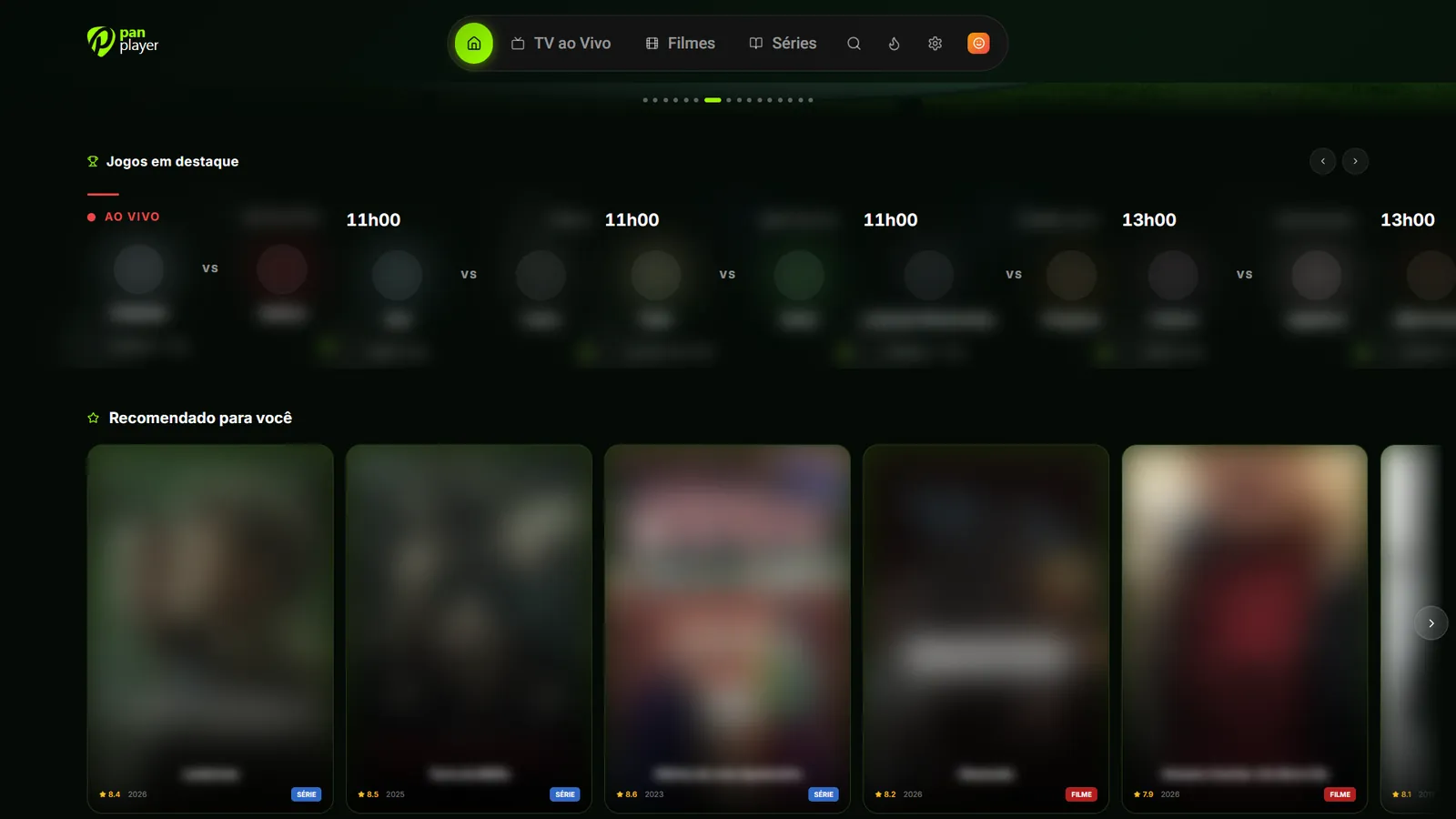
Advanced parental controls in Pan Player: a complete guide
Change the default 0000 password, hide adult content, categories and channels, and set up the Kids profile and per-profile PINs in Pan Player.
If you share your TV with the family, you know how it goes: one careless channel flip and something shows up that was never meant for the kids. Pan Player has parental controls built for exactly this, and they go further than a single lock. You decide what stays visible, what needs a password and which profile each person in the house uses.
A quick reminder first: Pan Player is a player only. It doesn’t sell, provide or store channels, movies or lists. All content comes from your own list, one that belongs to you or that you’re authorized to use, and the parental controls work on top of what that list delivers.
This guide walks you through setting everything up.
The 4-digit password
Everything starts with a 4-digit password. It protects adult (18+) content and anything else you choose to hide. Whenever someone tries to open something protected, the app asks for it.
Change the default 0000 password
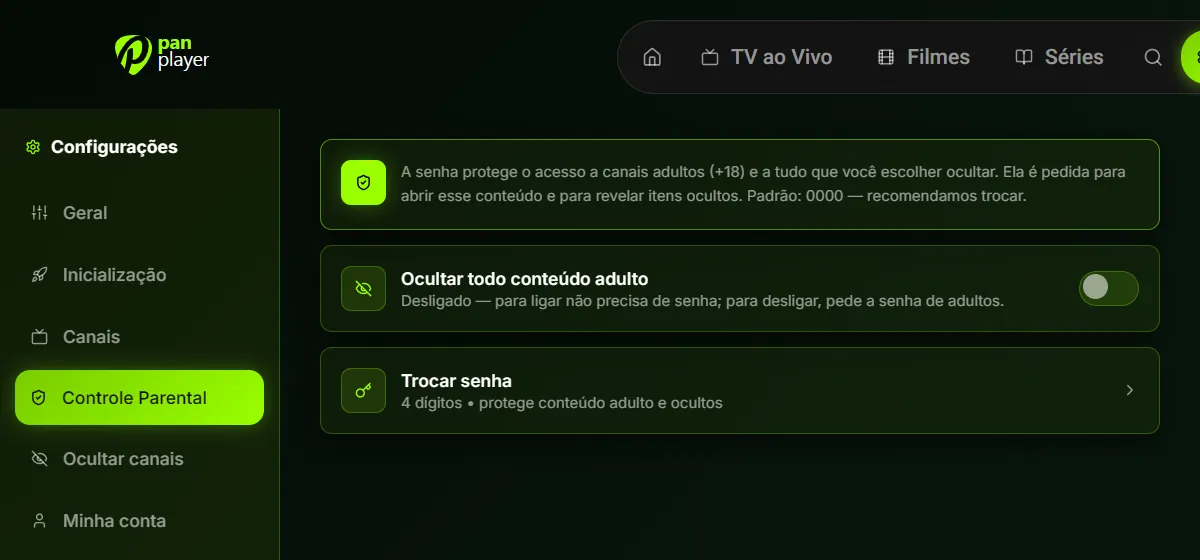
The password ships as 0000. That’s handy the first time you open the app, but anyone can guess it. So the first thing to do is change it:
- Open the app settings and go to the parental control section.
- Choose the option to change the password.
- Enter the current password (0000 if you’ve never changed it).
- Enter your new 4-digit password and confirm it.
Pick a number you’ll remember but that isn’t obvious to the people you live with. Someone’s birth year is usually the first thing a curious kid tries.
Hide all adult content
In the same settings you’ll find Hide all adult content. It behaves differently in each direction, on purpose:
- Turning it on needs no password. Anyone can make the TV safer at any time.
- Turning it off asks for the password. Nobody can undo the protection without your say-so.
This avoids the classic situation where a child finds the switch and turns the filter off on their own.
The Kids profile
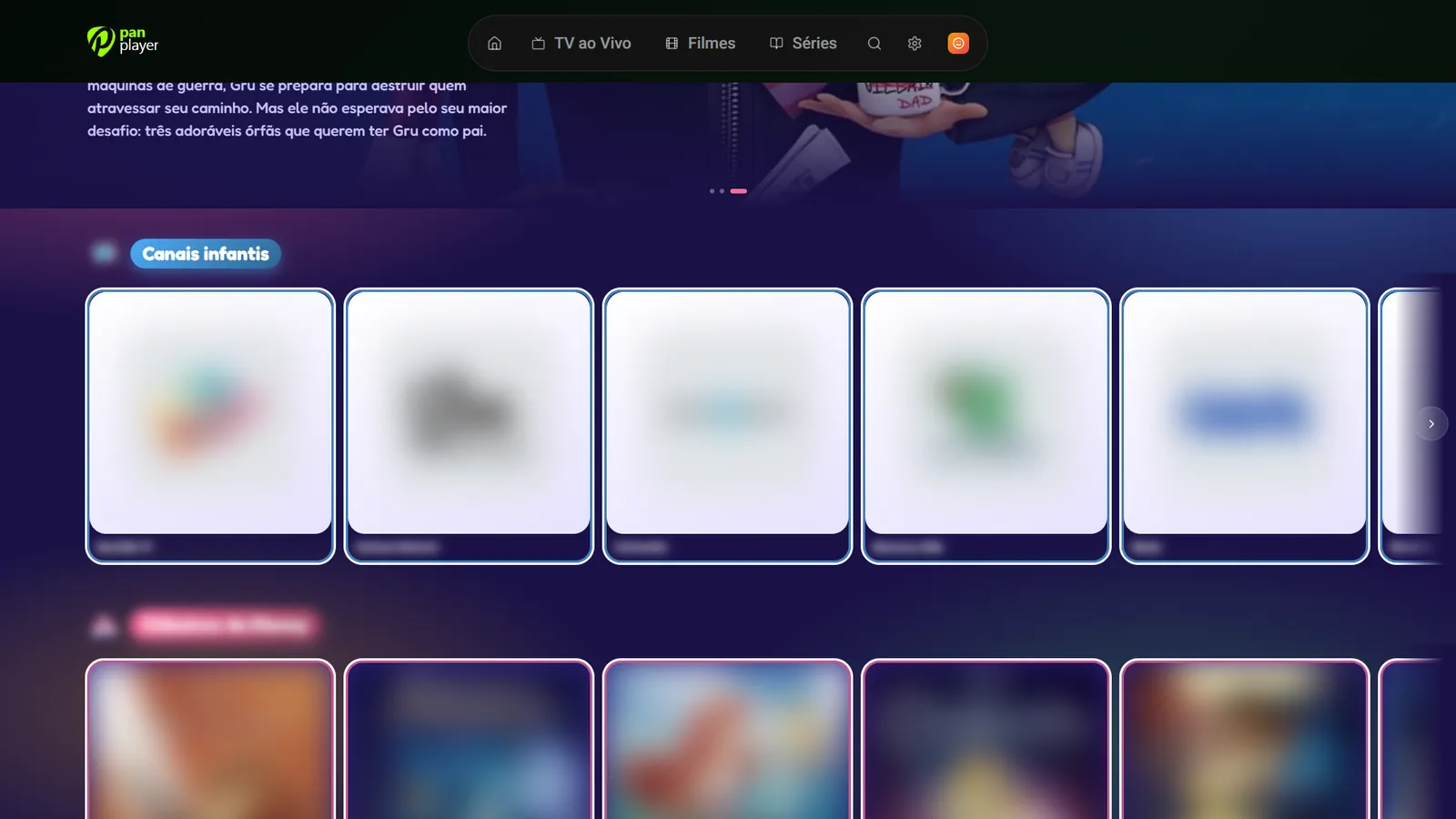
Besides regular profiles (up to 5 per account), Pan Player has a fixed Kids profile. When you pick it on the “Who’s watching?” screen, the app opens straight into the kids area, with a playful look and rows made for children, such as kids channels and classic animations.
For younger children this makes things much simpler: they land in their own space and don’t have to browse the whole catalog.
A PIN for each profile
Every profile can have its own 4-digit PIN. In practice this solves two problems:
- Your profile stays protected, so nobody can hop into it to watch what you’ve left unlocked for yourself.
- Each person keeps their own favorites, history and settings without mixing them with anyone else’s.
A common setup is to leave the Kids profile without a PIN, so children can get in on their own, and put a PIN on each adult profile.
Hide categories and channels
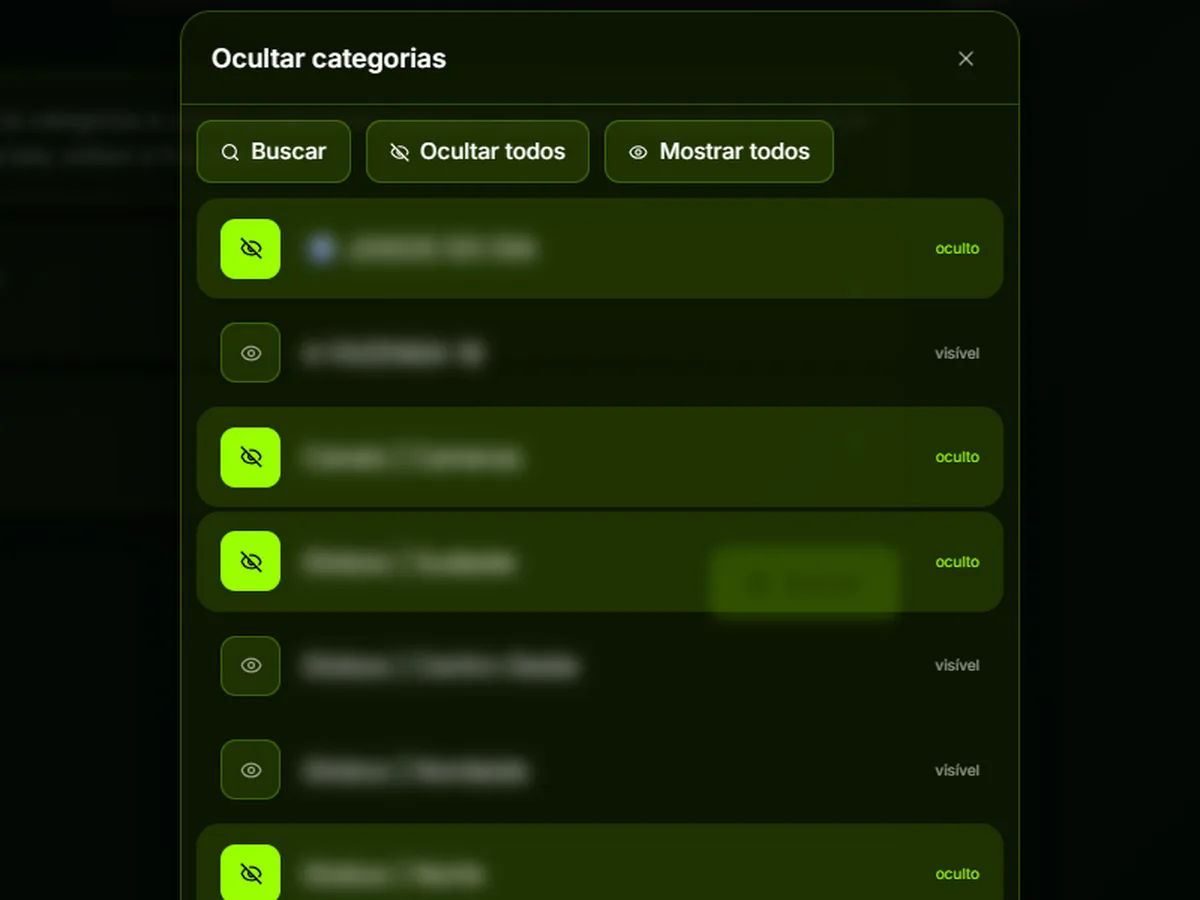
Sometimes the issue isn’t adult content at all. It’s a channel or a whole category you’d rather not see in your list. Pan Player lets you hide any category or channel:
- In settings, open the option to hide categories or channels.
- Use search to find what you want instead of scrolling the full list.
- Select the items you want to hide.
- If it’s easier, use Hide all and then bring back only what you want, or Show all to start over.
Hidden items disappear from your lists and are protected by the same parental control password.
Revealing hidden items for a moment
What if you want to watch something you’ve hidden? You don’t need to undo your settings. On the channel screen:
- Hold the 0 key on your remote for 3 seconds.
- Type your 4-digit password.
The hidden items show up while you stay on that screen. As soon as you leave, they’re hidden again automatically, so there’s nothing to remember to switch back.
A suggested setup for families
If you’d like a starting point, this combination works well in most homes:
- Change the default 0000 password the first time you use the app.
- Turn on Hide all adult content.
- Hide the categories and channels that don’t make sense for your family.
- Create a profile for each adult, with a PIN.
- Let the kids use the Kids profile.
All of this works with the arrow keys and OK button on your remote, and with mouse or touch on devices that support it. To see what else the app can do, have a look at the features page, and if anything is unclear, check the FAQ.
Getting started
If you’re not using Pan Player yet, you can try every one of these options free for 7 days, with no credit card needed to sign up. Create your account, add your list and set up parental controls before you hand the remote to the kids.