How to hide categories and channels in Pan Player
Hide the categories and channels you never use, protect them with a password and reveal them when needed by holding the 0 key on your remote.
IPTV lists tend to be big. Many come with dozens of categories and hundreds of channels, and you’ll never watch a good part of them: channels in languages nobody at home speaks, duplicate versions, whole categories you don’t care about. Scrolling past all of that with a remote every time gets old. And in a home with kids, some content simply shouldn’t show up on screen.
Pan Player lets you hide any category or channel. Whatever you hide leaves the menus and only comes back with your parental control password.
Why hide things
A few common reasons:
- A cleaner list. Fewer categories and channels mean fewer clicks to reach what you want.
- Less repetition. If your list has the same channel several times, hide the extras.
- Protecting kids. Adult content, and anything else you’d rather keep out of sight, stays off the screen.
- Your own focus. If you only watch sports and news, you don’t need to scroll through everything else.
Keep in mind that Pan Player is only a player. It doesn’t store or host any content; everything you see comes from your own list, one that is yours or that you’re authorized to use. Hiding an item doesn’t delete anything from your list, it just takes it out of your browsing in the app.
How to hide categories and channels
It’s all done in the app’s settings:
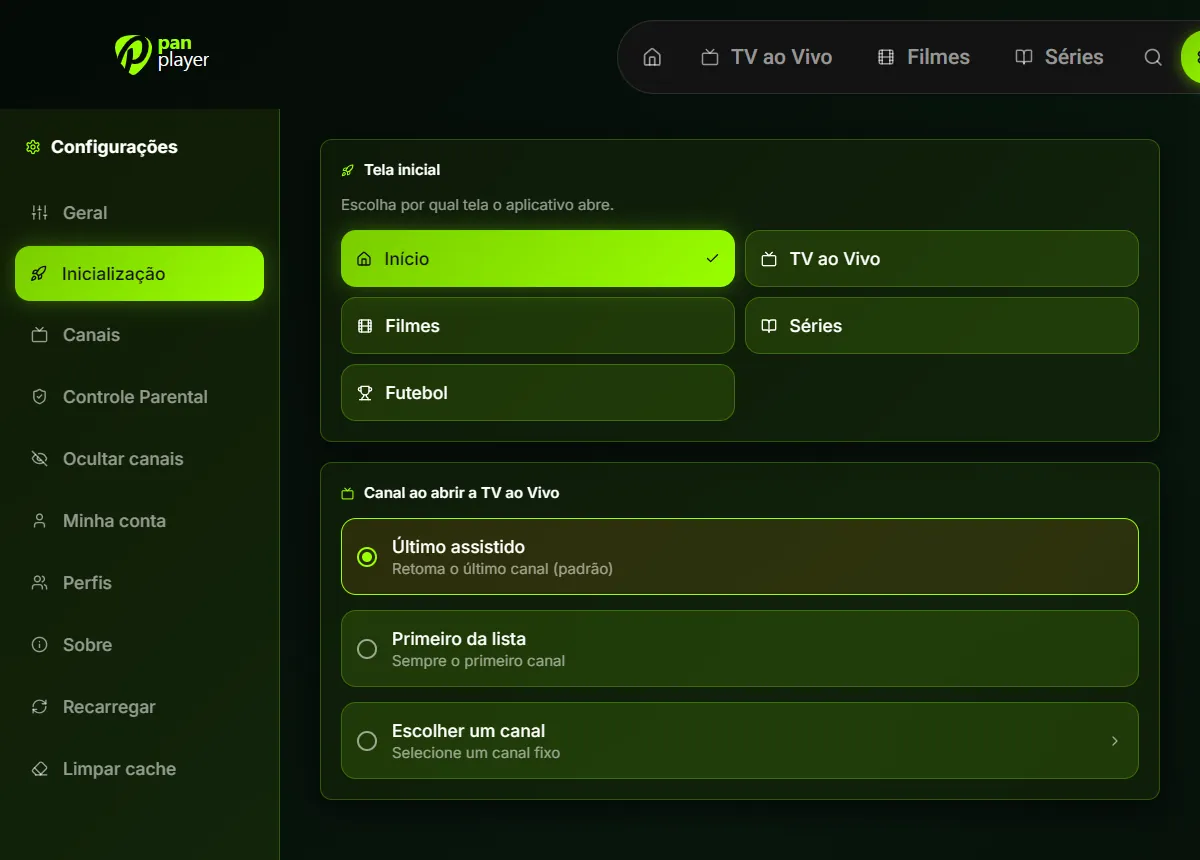
- Open Pan Player’s settings.
- Go to the option for hiding categories and channels.
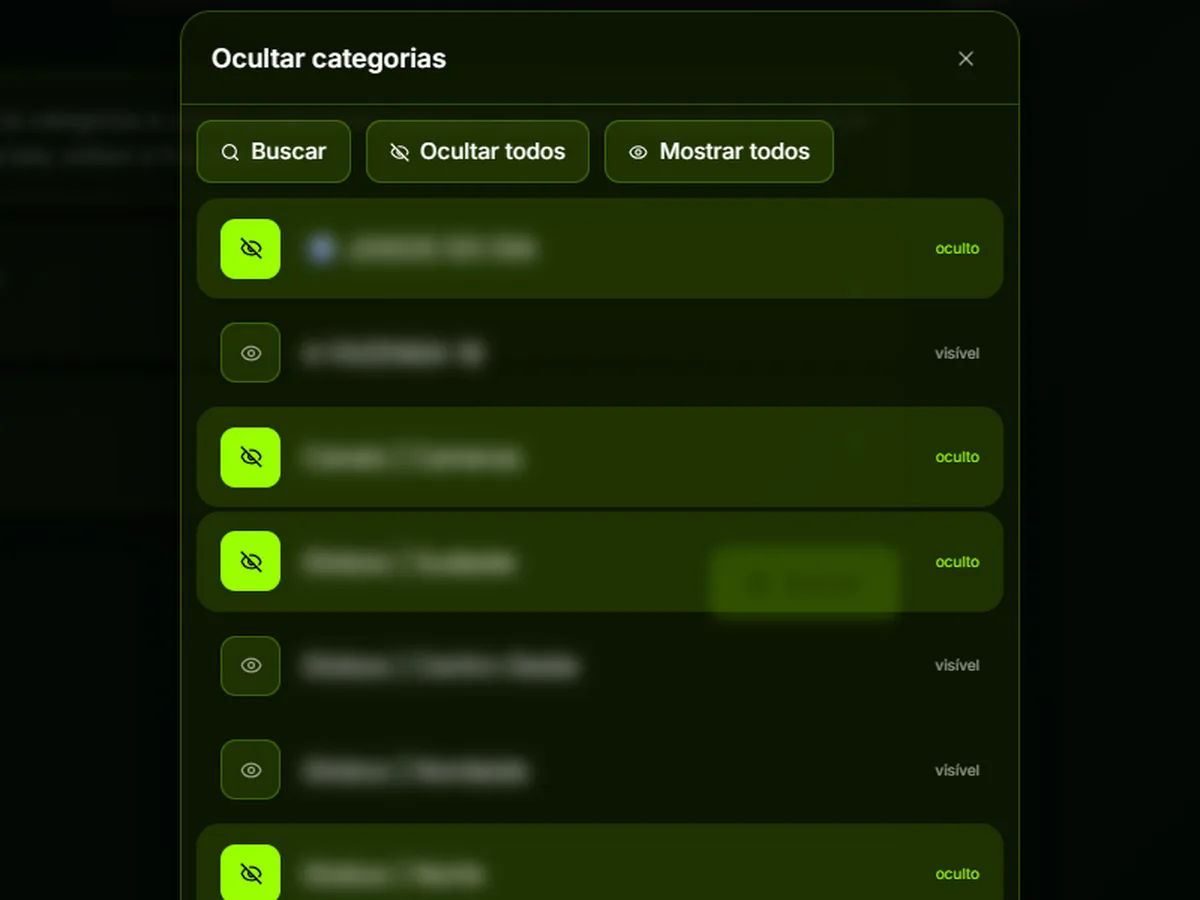
- Choose whether you want to hide categories or channels.
- Select the items you want to hide. Use search to find a specific item in a long list.
- Confirm. The selected items disappear from the menus.
The selection screen has two shortcuts that save a lot of time:
- Hide all selects everything at once. It’s useful when you only want to keep a few categories: hide all, then unselect the ones you want.
- Show all undoes everything and brings back the full list.
As everywhere in the app, it all works with the arrows and OK on your remote. On a phone or computer, just tap or click.
The password that protects hidden items
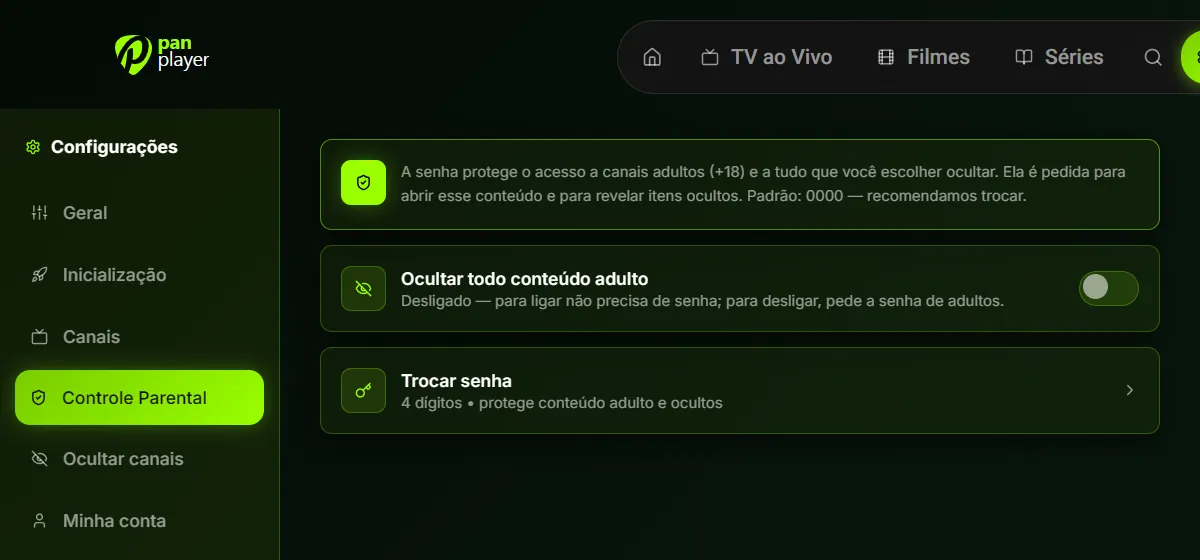
Hidden items are protected by your parental control password, a 4-digit code. The same password protects adult (+18) content.
The default password is 0000. Change it the first time you use the app. If it stays at the default, anyone who knows the app can see what you’ve hidden. Pick a number you’ll remember but that isn’t obvious to the people you live with.
The parental control settings also have a Hide all adult content option. Turning it on doesn’t ask for a password, so you can switch it on right away. Turning it off does ask for the password.
How to reveal hidden items for a moment
Sometimes you want to watch a channel you’ve hidden without undoing your whole setup. There’s a shortcut for that on the channel screen:
- On the channel screen, hold the 0 key on your remote for 3 seconds.
- Type your parental control password.
- The hidden items show up in the list and you can watch as usual.
When you leave the screen, they’re hidden again on their own. You don’t have to remember to hide them again, and nobody finds the unlocked channel after you get up from the couch.
This is the most practical way to handle content you don’t want in plain view but occasionally want to reach. Your setup stays exactly as you left it, and the reveal only lasts for that moment.
Good habits
- Change the 0000 password before anything else.
- Start with what bothers you most. Hide whole categories nobody uses first; then fine-tune channel by channel if needed.
- Use “hide all” on purpose when you want a really short list.
- For kids, combine features. Besides hiding items, the Kids profile opens straight into the kids area, with its own look and rows of kids channels and classic animations. Read more in profiles and continue watching.
- Pair it with fast startup. With a shorter list, it’s easier to choose the channel Live TV opens with. See fast startup.
More questions about passwords and parental control? Check our FAQ.
Try it
The 7-day free trial includes every feature, parental control and hiding categories and channels included. Create your account on the register page, change the default password and shape the list so it works for your home.