Fast startup: open straight on the screen and channel you want
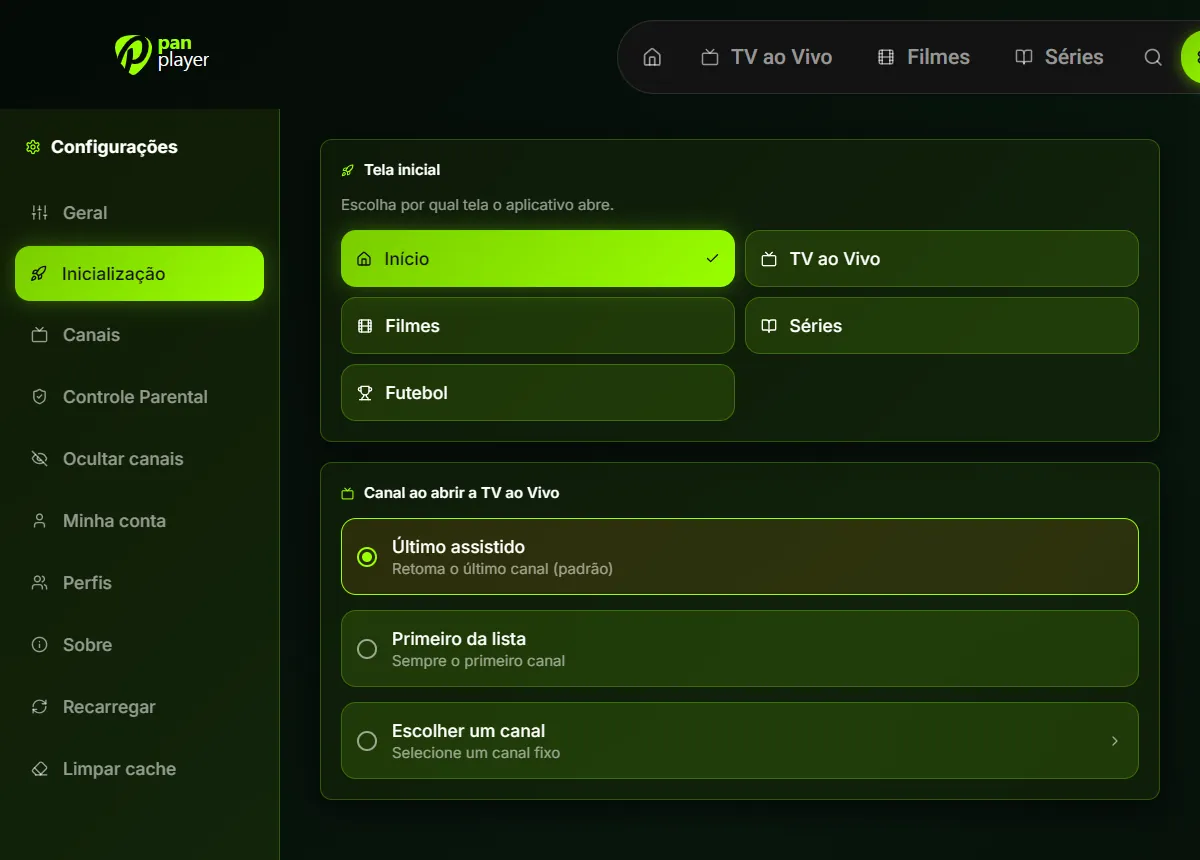
Choose which screen Pan Player opens on (Home, Live TV, Movies, Series or Football) and which channel Live TV plays first.
Some people turn on the TV and go straight to the news. In some homes the remote spends all day on the cartoon channel. And some people only open the app to watch series. If you take the same path every time you open Pan Player, fast startup removes those steps: you choose which screen the app opens on and, for Live TV, which channel starts playing.
What you can set
There are two separate options. Use one, the other, or both.
Start screen
This is the first screen you see when the app opens. You can pick:
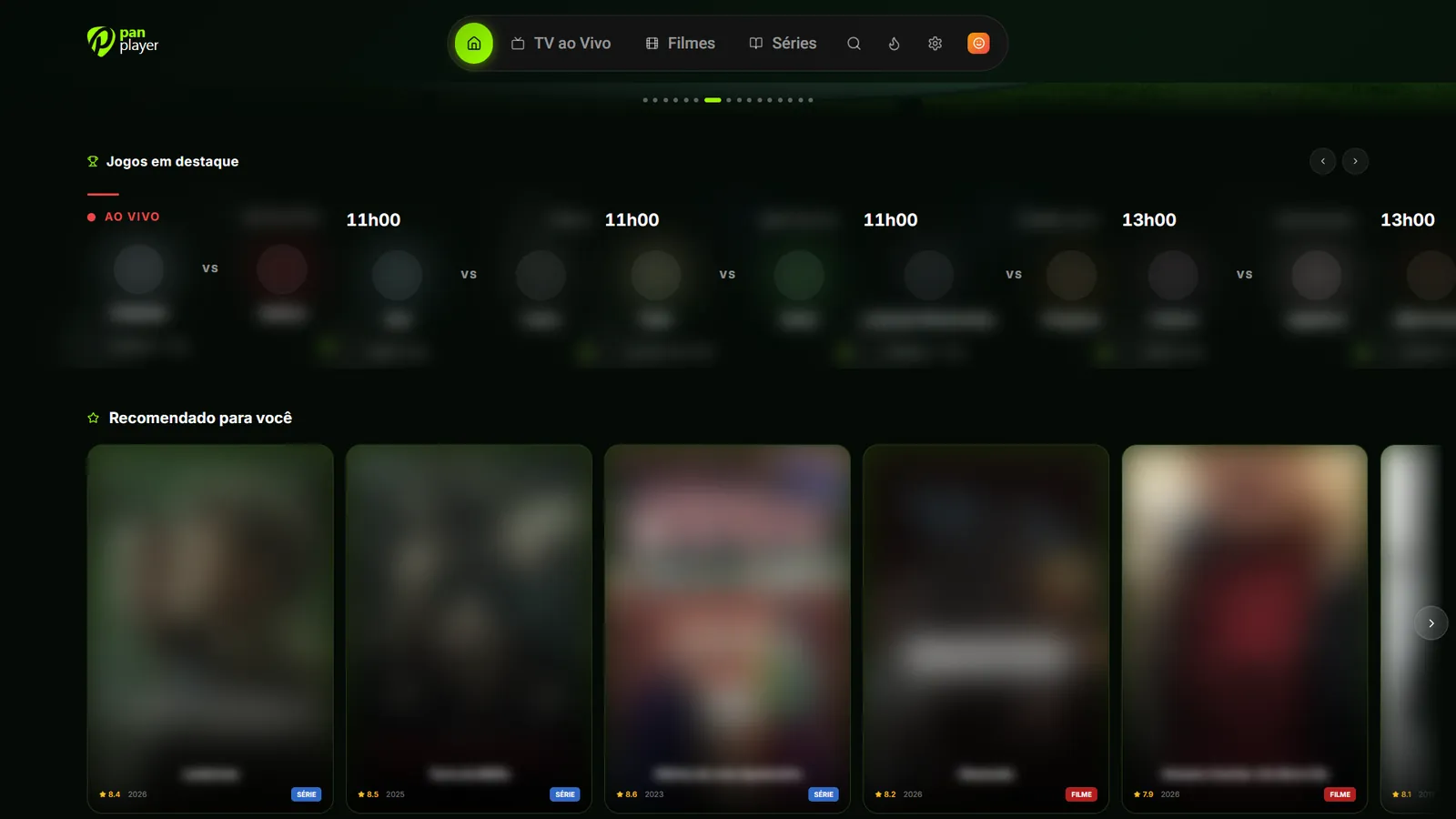
- Home, with highlights, recommendations and featured matches;
- Live TV, with categories and the channel list;
- Movies;
- Series;
- Football, the dedicated matches screen.
Startup channel for Live TV
This sets which channel Live TV loads when you open it. There are three choices:
- Last watched, the default. The app goes back to the channel you were on last time.
- First on the list, handy if the channel you care about most sits at the top of your list.
- A specific channel, which you pick once and becomes your fixed starting point.
How to set it up
Both options live in the app’s settings:
- Open Pan Player’s settings.
- Go to the startup options and choose your start screen.
- Right below it, choose how Live TV should start: last watched, first on the list or a specific channel.
- If you chose a specific channel, select it from the list.
- Close the app and open it again to see the result.
Everything works with the arrows and OK on your remote, like the rest of the app. On a phone or computer, just tap or click.
Combinations that work well
The real benefit comes from matching the two options to your routine. A few examples.
Live TV people
Start screen on Live TV and channel on last watched. You open the app and it carries on where you left off, like a cable box. It’s the closest thing to “turn it on and it’s playing”.
The house channel
If there’s one channel everybody looks for first, say the news in the morning, use Live TV with a specific channel. That way it doesn’t matter who watched what the night before: the app always opens in the same place.
Match day
If you follow football, opening straight on the Football screen shows the matches with kick-off time, teams and the channel showing each one. The Home screen also shows featured matches, alongside the rest of the recommendations. If you just want to pick a match and jump to the channel, the Football screen saves time.
Movie night or a binge
If Live TV barely gets used at your place, set the start screen to Movies or Series. You land right in the catalog, with posters, synopses and trailers, without passing through the channel list.
First on the list
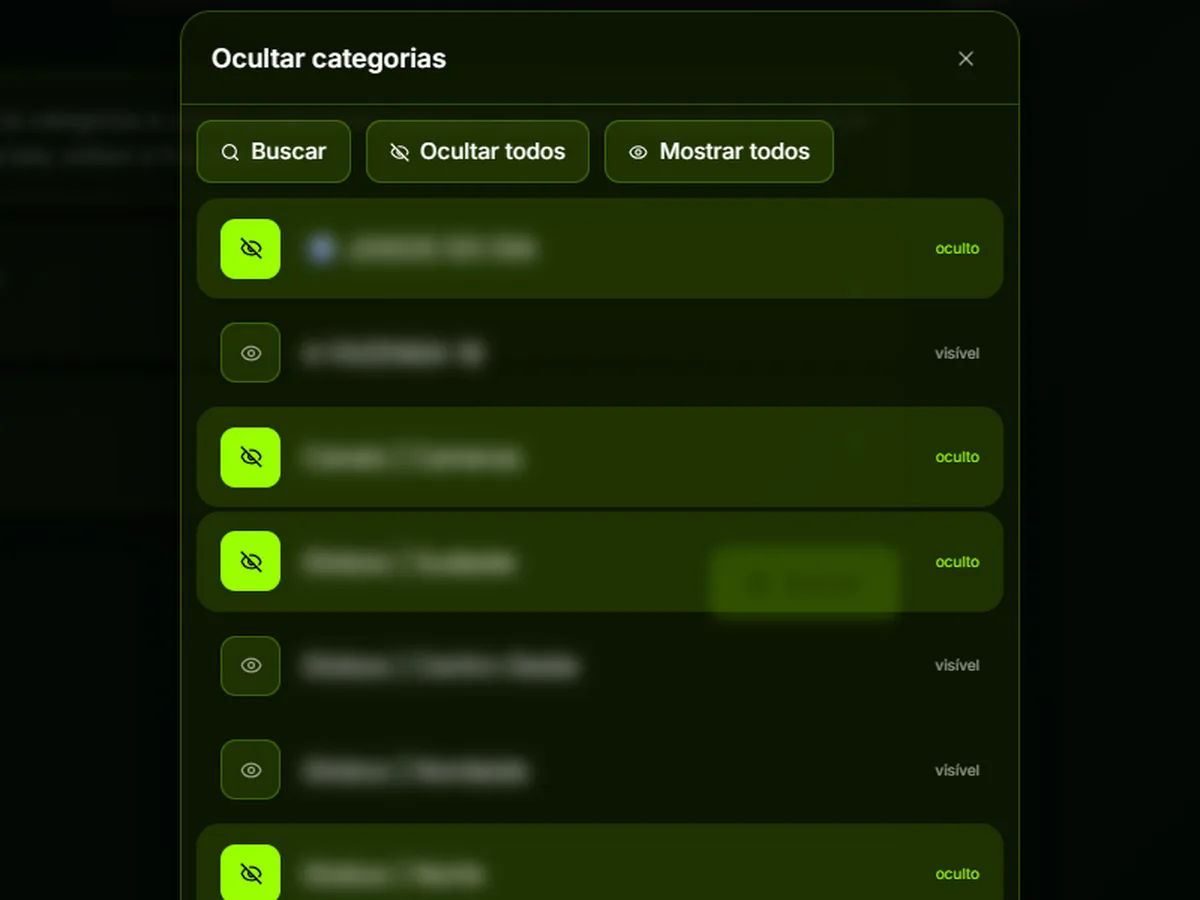
First on the list makes sense when your list’s order already reflects what you watch most. And if your list has a lot you never watch, you can hide categories and channels to keep browsing tidy. We explain how in hide categories and channels.
A few tips
- Try it out. After changing the setting, close and reopen the app once or twice. If it isn’t what you expected, go back to settings and change it.
- Channels with several qualities. If your list has the same channel in FHD, HD and SD, the merge qualities option turns them into a single channel that opens in HD. To switch quality while watching, press down. That makes the list shorter and your startup channel easier to find.
- Channels come from your list. Pan Player is only the player and doesn’t store or host any content: the channels you see are the ones in the Xtream Codes list you use, your own or one you’re authorized to use. If your chosen channel disappears from the list, pick another one in settings.
Why this matters on a TV
On a phone, skipping two screens is one tap. On a TV, with a remote, it’s several clicks and a few seconds staring at menus. Used every day, those seconds add up. Fast startup is a small setting, but it’s the kind of thing that makes the app feel set up for your home.
If you haven’t added your list yet, start with how to set up your Xtream Codes list. Other app features are on the features page.
Try it
The free trial lasts 7 days and includes every feature, this one too. Create your account on the register page, sign in on your TV and set the start screen and channel your way before you decide whether to continue.