Pan Player on Fire TV, Android TV, Windows and mobile
Where to get Pan Player on Fire TV, Android TV, Google TV, Windows, Android and iPhone, and how to pick up where you left off on any device.
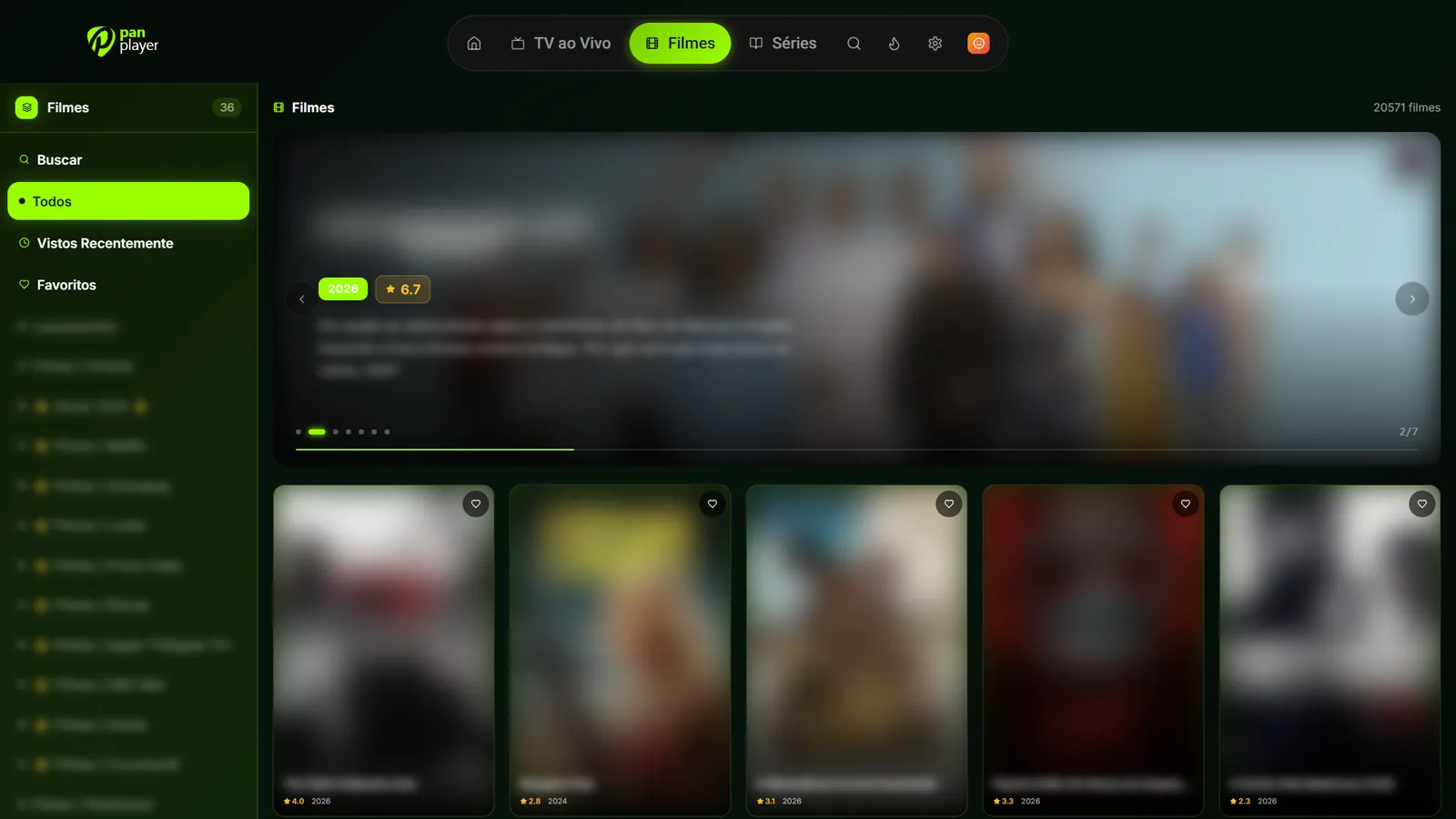
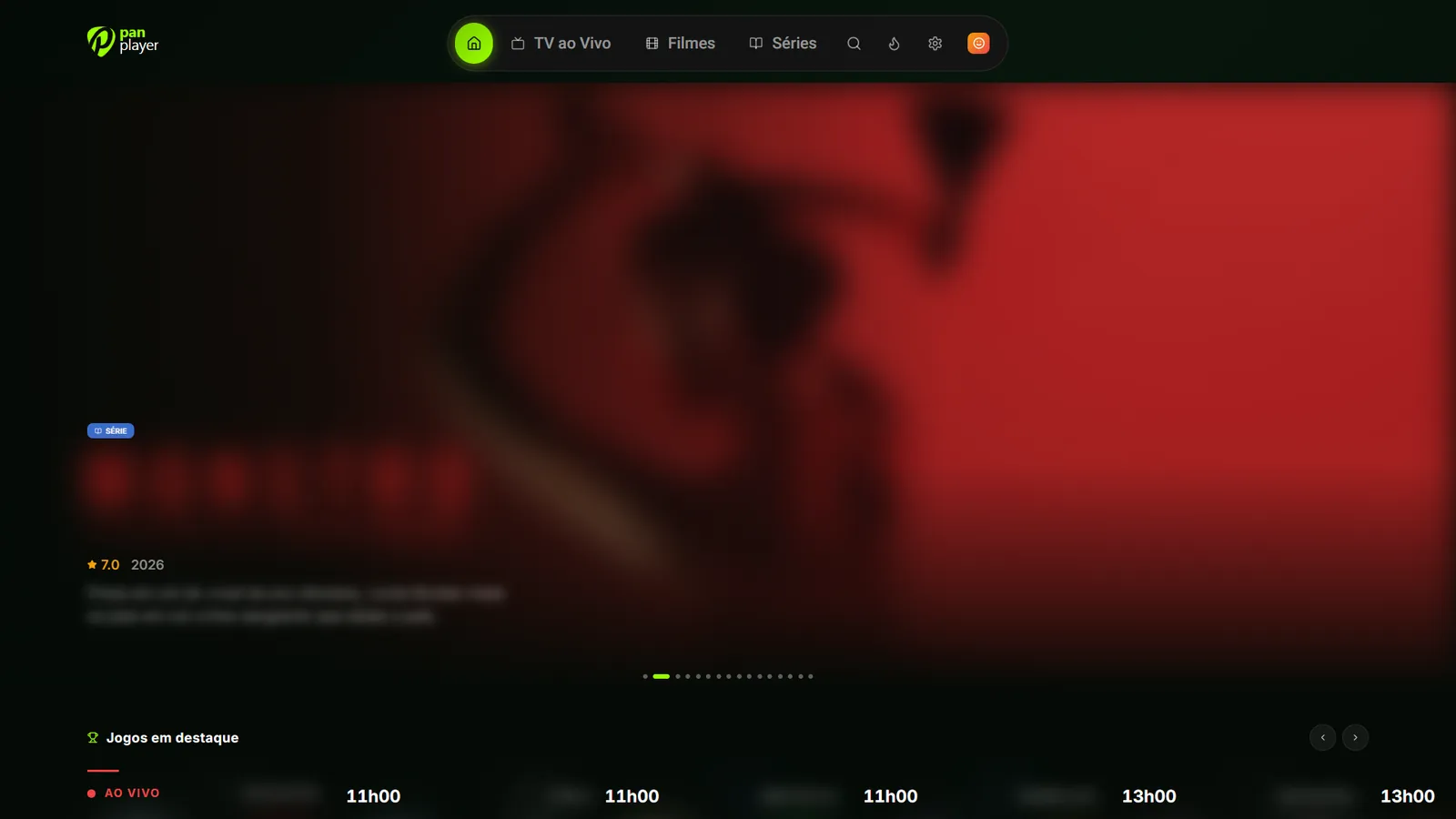
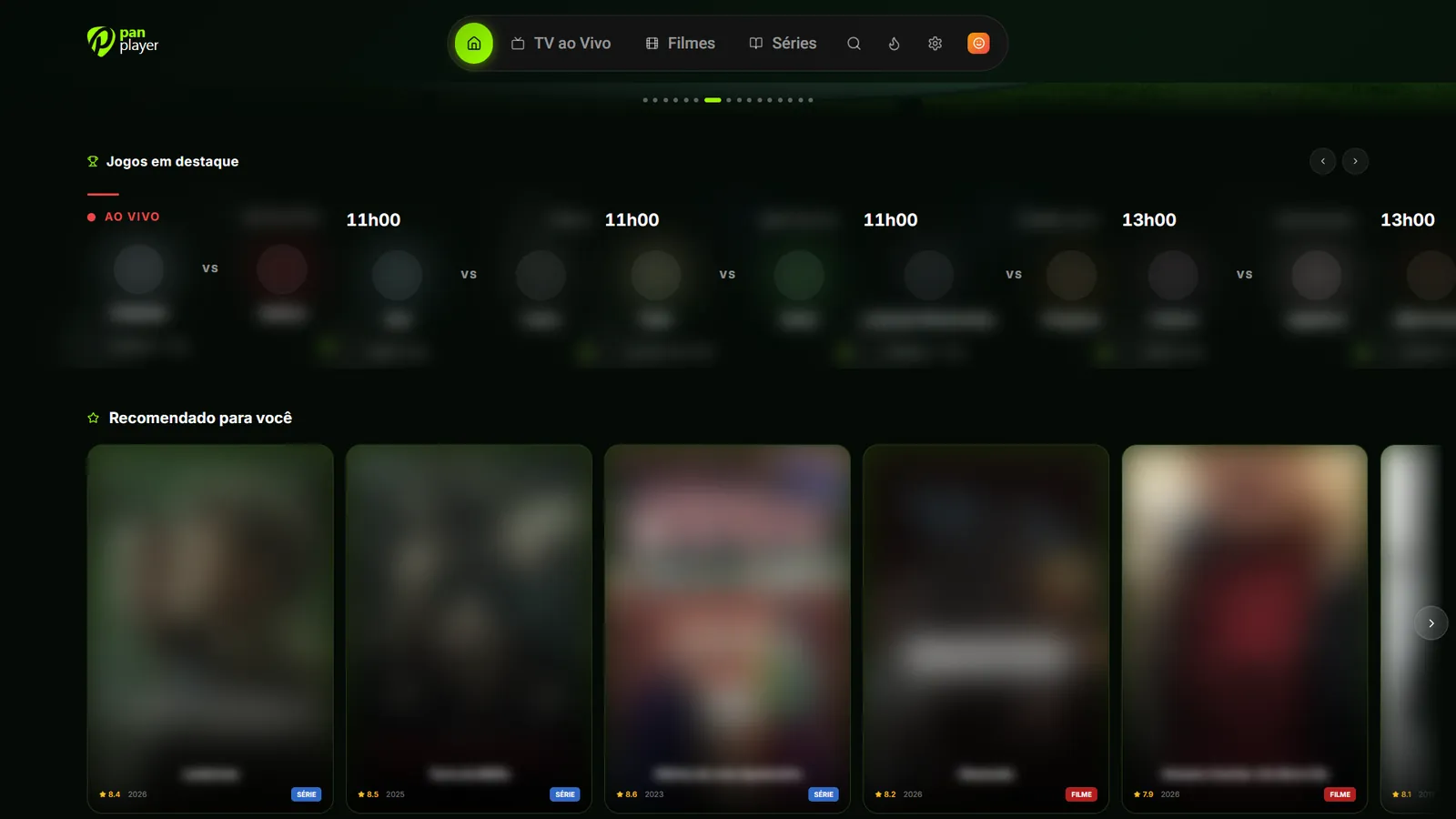
Pan Player isn’t tied to a single screen. The same account works on Fire TV, Android TV, a Windows PC and your phone. This post covers where to find the app on each platform, what changes between using a remote and a touchscreen, and how to keep watching as you move from one device to another.
First, the basics: Pan Player is a player. It doesn’t sell, provide or store channels, movies or lists; all content comes from your list. You use your own Xtream Codes list, one that belongs to you or that you’re authorized to use.
Where to find the app on each platform
The route is the same everywhere: open your device’s official store, search for Pan Player and install it.
Amazon Fire TV
On Fire TV, the app is in the Amazon Appstore. This includes devices running Fire TV Vega OS. Use search on the home screen or in the store, type “Pan Player” and download it.
Android TV and Google TV
On TVs and streaming devices running Android TV or Google TV, the app is on Google Play. Search for “Pan Player” and install it.
Windows
On your PC, Pan Player is in the Microsoft Store. Open the store, search for the name and install. After that, open it from the Start menu.
Android phones and tablets
On Android phones and tablets, the store is also Google Play.
iPhone and iPad
On iPhone and iPad, the app is in the App Store.
For the full list of platforms, see the devices page.
Remote or touch: what changes
Pan Player was designed for the TV remote first. On smart TVs, Fire TV and Android TV, every screen works with just the arrow keys and OK. Search comes with an on-screen keyboard built for the remote, so typing a title doesn’t turn into a chore.
On phones, tablets and computers, the experience adapts: you navigate with touch or a mouse, swipe through rows and tap what you want to watch. The features are the same; only the way you interact changes.
Chromecast on mobile
On phones, Pan Player supports Chromecast. It comes in handy when you’re browsing on your phone and want to send something to a TV with a Chromecast attached, without opening the app on the TV.
One account, many devices
You don’t need a separate account for each device. Sign in with the same account everywhere and your profiles come along. Each profile keeps that person’s favorites, history and settings.
Signing in works the same way on every platform: sign in with the same username and password on every device, and your list loads automatically, with no server address to type. The full walkthrough is in how to set up your Xtream Codes list.
Continue watching anywhere
The feature that matters most if you use more than one device is Continue watching. It syncs per profile across devices. Start a movie on the living room TV and finish it on your phone in bed, without hunting for where you stopped.
A few details make it work well day to day:
- Playback resumes 10 seconds before the point where you stopped, so you don’t lose the thread of the scene.
- Anything watched for less than 1 minute isn’t recorded, so opening something just to take a look doesn’t clutter the row.
- Keep watching the next episodes with just one tap.
Which device for what
There’s no right answer, but a common pattern looks like this:
- TV, Fire TV or Android TV for watching on the couch with the remote.
- Phone for choosing what to watch, watching away from the living room or casting to the TV with Chromecast.
- Windows for watching at a desk or in the bedroom, with a mouse.
To see everything the app offers on each screen, visit the features page.
Getting started
The 7-day free trial includes every feature. Create your account, install the app on the devices you use every day and watch Continue watching carry over from one to the next.