How to set up your Xtream Codes list on Pan Player
Add your list on the panel and sign in to Pan Player on your TV with just your username and password, without typing a server URL with the remote.
If you have ever typed an IPTV server address with a TV remote, you know the routine: one letter at a time on the on-screen keyboard, a dot in the wrong place, an extra slash, and the login fails without telling you why. With Pan Player you skip all that. You do the fiddly part once, on the panel, from your phone or computer, and on the TV you only type your username and password.
One thing to keep in mind before you start: Pan Player is only a player. It doesn’t sell, provide, store or host any content: channels, movies and series all come from your own Xtream Codes list, one that is yours or that you are authorized to use.
What you need
An Xtream Codes list comes with three pieces of information, usually sent by your list provider:
- the DNS (the server address, also called the login URL);
- a username;
- a password.
Keep these at hand. You’ll add the list on the panel, and on the TV you only type the username and password.
Step by step
1. Create your account on the panel
Go to panel.panplayer.net on your phone or computer and create an account with your name, e-mail and a password. No credit card is needed to sign up.
If you are already sitting in front of the TV, you can skip the typing: the app’s login screen has a Create account button that shows a QR code. Point your phone’s camera at it and finish signing up there. You can also start from our register page.
2. Add your Xtream Codes list on the panel
Once you’re logged in to the panel, add your list with its DNS (server address), username and password, exactly as your provider sent them. Take a second to check that there are no extra spaces at the start or end and that the address is complete. Since you’re on a real keyboard (or your phone’s), copy and paste works best.
3. Install Pan Player on your device
Install the app on your TV, TV box or phone. If you need help, see the install guides for LG, Samsung and Roku smart TVs and for Fire TV, Android TV, Windows and mobile.
4. Sign in with your username and password
Open Pan Player and go to the login screen:
- In the Username field, type your username.
- In the password field, type your password.
- Confirm with OK.
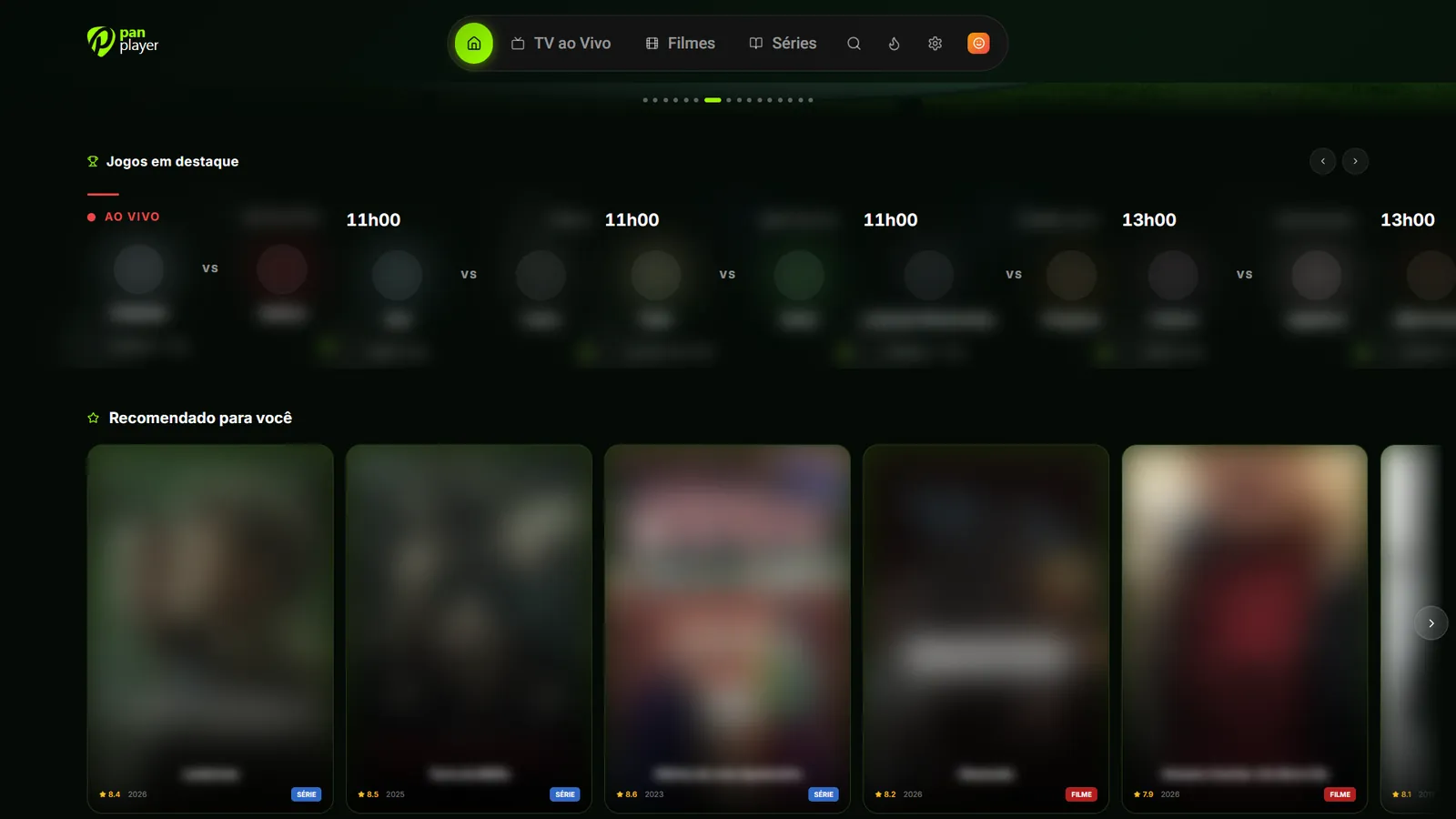
That’s it. Your list loads automatically, with your channels, movies and series. Nobody has to type a server address with the remote.
Why it’s easier this way
- Less typing with the remote. Instead of a long address full of dots, slashes and port numbers, you type just your username and password.
- Fewer mistakes. The DNS is entered once, on the panel, with a proper keyboard. On the TV there’s no address to mistype.
- Quicker on every device. If you use Pan Player on the living room TV, the bedroom TV and your phone, just sign in with the same username and password on each one.
When sign-in doesn’t work
Most problems come down to one of these. Check them in this order.
Wrong username or password
Check your username and password carefully: upper and lower case matter, and there should be no extra spaces at the start or end. Compare them, character by character, with the details you registered.
A different DNS on the panel
Open the panel and check that the list address registered there matches exactly what your provider gave you.
Expired list
IPTV lists usually have an expiry date. If yours has expired, the server will refuse access even with the right username and password. Only your list provider can fix that, not the app.
Server (DNS) offline
Sometimes the list’s server is unstable or has moved to a new address. If everything looks right and you still can’t get in, ask your provider whether the DNS is still the same. If they send a new address, update your list on the panel.
In short: password, expiry and server issues are handled by your list provider. For questions about the app, your account or the panel, see our FAQ or write to panplayernet@gmail.com.
After you sign in
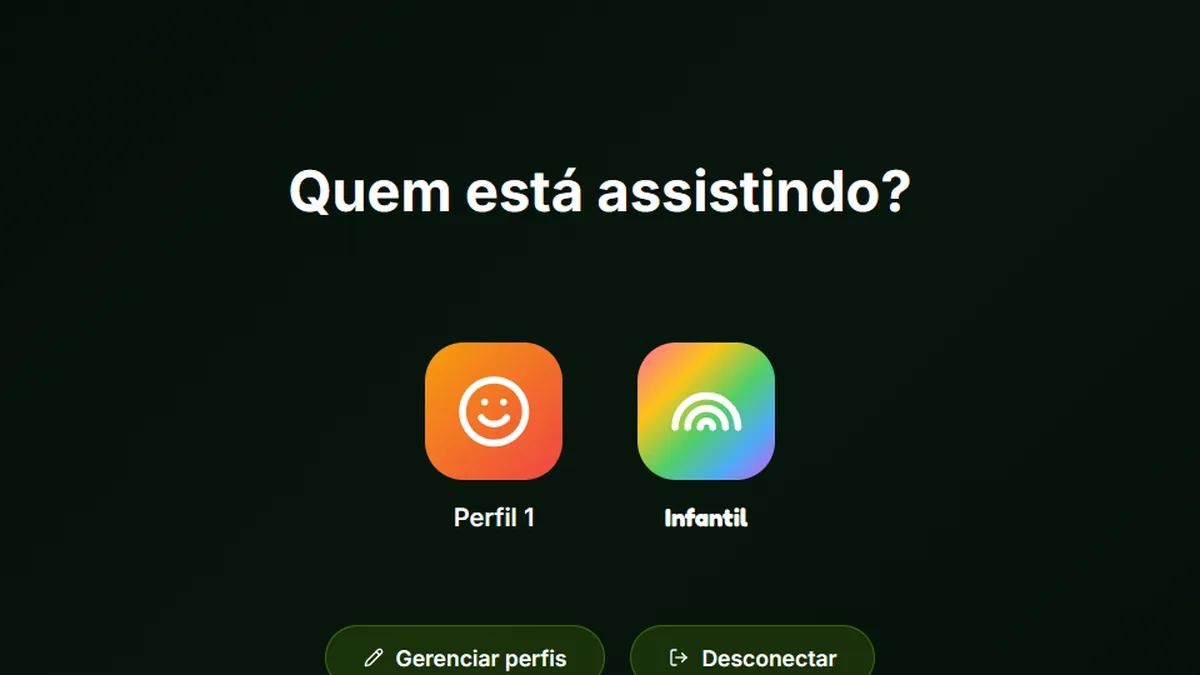
With your list loaded, it’s worth spending two minutes setting the app up your way. You can create a profile for each person at home, each with their own history and an optional PIN, as explained in profiles and continue watching. And if you’d like the app to open straight on your usual channel, read the fast startup guide.
Try it
You can try all of this free for 7 days, with every feature included. Create your account on the register page, add your list and sign in on your TV with your username and password. If you want to keep going after the trial, prices are on the pricing page.